References and bibliography
Plan: Pro.
Scribe Pro adds a structured bibliography to your project: a list of sources you can cite from anywhere in the manuscript and render as a formatted reference list. Citations and the reference list stay in sync, and the formatting follows the citation style you choose.
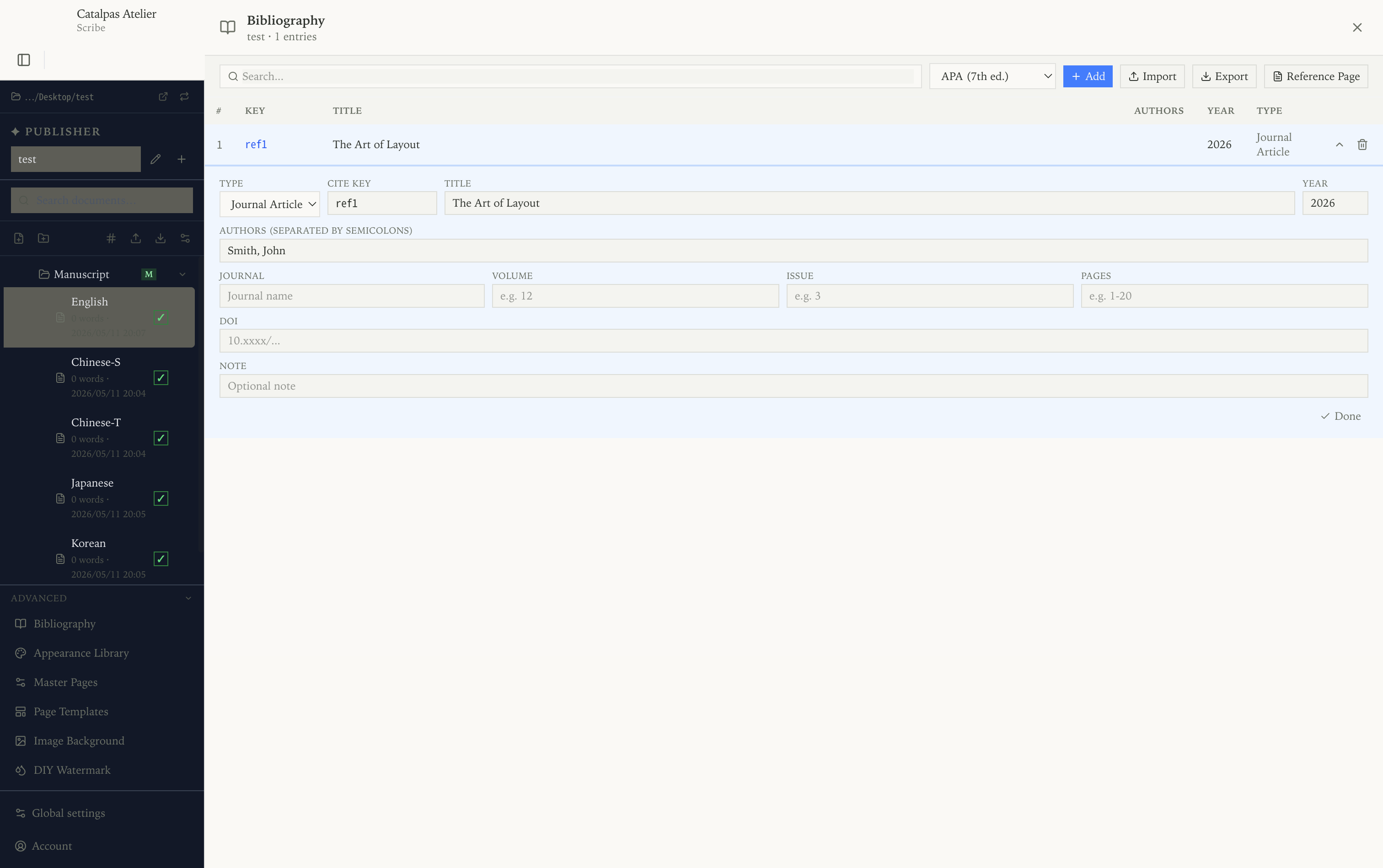
The Bibliography panel
Open Advanced > Bibliography in the left sidebar. The panel is where every source lives.
Each entry has a cite key (a short identifier such as smith2024),
a type (journal, book, web page, and so on), a title, one or
more authors, and a year, plus optional fields such as
publisher, container, volume, and URL.
From the toolbar you can:
- Add an entry and fill in its fields,
- Search entries by title, author, or cite key,
- Import CSV and Export CSV for the whole list, so you can edit it in a spreadsheet or move it between projects.
Choosing a citation style
Pick the style from the selector at the top of the Bibliography panel. Scribe ships five built-in styles:
- APA (7th ed.)
- MLA (9th ed.)
- Chicago (17th ed.)
- IEEE
- Turabian (9th ed.)
The style is saved with the project. You can switch at any time without touching your text — Scribe re-formats every citation and the reference list when you change it.
Citing a source
In the editor, insert a citation and pick the source by its cite
key. The in-text marker is rendered in the chosen style — for example
(Smith, 2024) for APA or a bracketed number for IEEE. Toggle Show citation
markers in the preview when you want to check the rendered output.
To print the formatted list, choose Insert References Block where you want it to appear (usually at the end of the manuscript). Scribe fills the block with every cited source, sorted and formatted for the current style.
Footnotes and endnotes
Footnotes and endnotes are not Pro-only. They are explained here because they are often used alongside references and citations. Footnotes and endnotes are separate blocks you insert from the editor toolbar. They are numbered automatically and rendered to suit each output:
- PDF / print — footnotes at the foot of the page; endnotes at the end of the document.
- EPUB — collected at the end of the chapter and linked back to the marker.
- Image preview — shown inline so the page stays self-contained.
Exporting
When you export to EPUB, keep Include References in EPUB turned on so the reference list ships with the book. In-text citations can link to the corresponding entry in that list.
Notes
- The bibliography is per project. Use Export CSV to reuse a list in another project, then Import CSV there.
- Switching styles never edits your manuscript — only the rendered citations and the reference list change.