Workspace overview
The Scroll window combines fixed navigation with workspaces that change according to your current task. Knowing these areas makes it easier to distinguish a change to a file or card from a change to the way data is displayed.
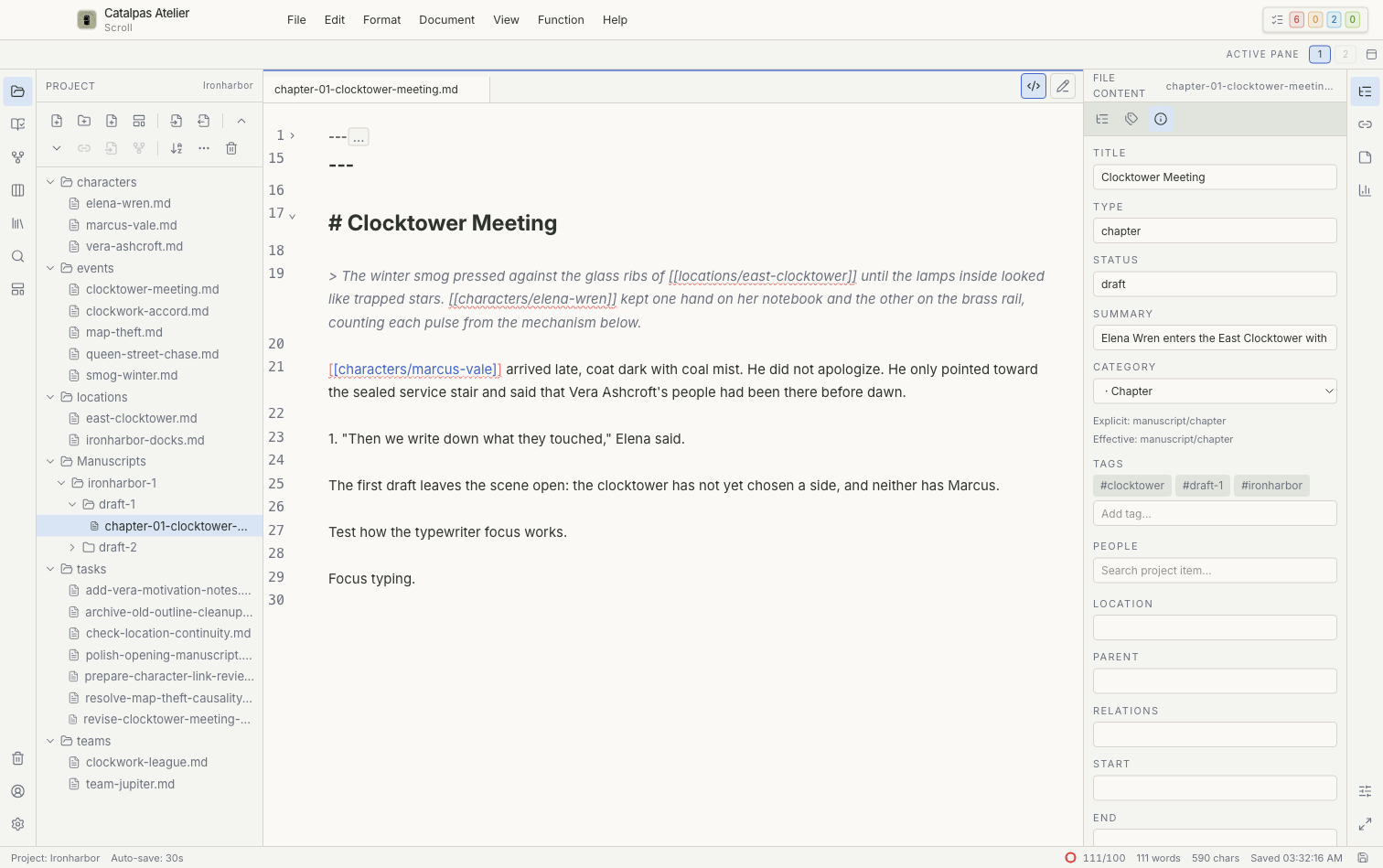
1. Activity bar
Use the vertical bar at the far left to switch between Project, Story, Tasks, References, Works, Search, and Templates. Trash, Account, and Settings appear near the bottom.
Switching workspaces does not close documents that are already open. It changes the workspace shown in the sidebar or main area.
2. Workspace sidebar
Some workspaces have their own sidebar. Project, for example, displays the local file tree. Story and Tasks more often place saved-view tabs and the active canvas in the main area.
3. Main workspace
The center of the window is where text and card editors, Story canvases, task boards, and settings pages open. You can keep several files open in tabs and split supported editor views into panes.
4. Inspector
The inspector on the right displays the available File Content, Related Files, Notes, Stats, or Editor Appearance panel for the active document. The expanded Related panel is titled Related. Hiding the inspector does not delete any of its data.
5. Status bar
The status bar at the bottom shows information such as save state, word or character count, and the current goal. If it shows unsaved work, save before closing the Project or app.
What each action changes
- Editing prose, card fields, or tasks saves changes to the Project.
- Moving, renaming, merging, or moving an item to Trash changes a file or folder.
- Switching tabs, zooming a canvas, or expanding a panel usually changes only the current interface state.
- Saving filters, sorting, grouping, or a view layout updates a saved view in the current Project.