Project workspace
The Project workspace reflects the local folder you selected. The file tree shows real paths relative to the Project root, not a collection that exists only inside Scroll.
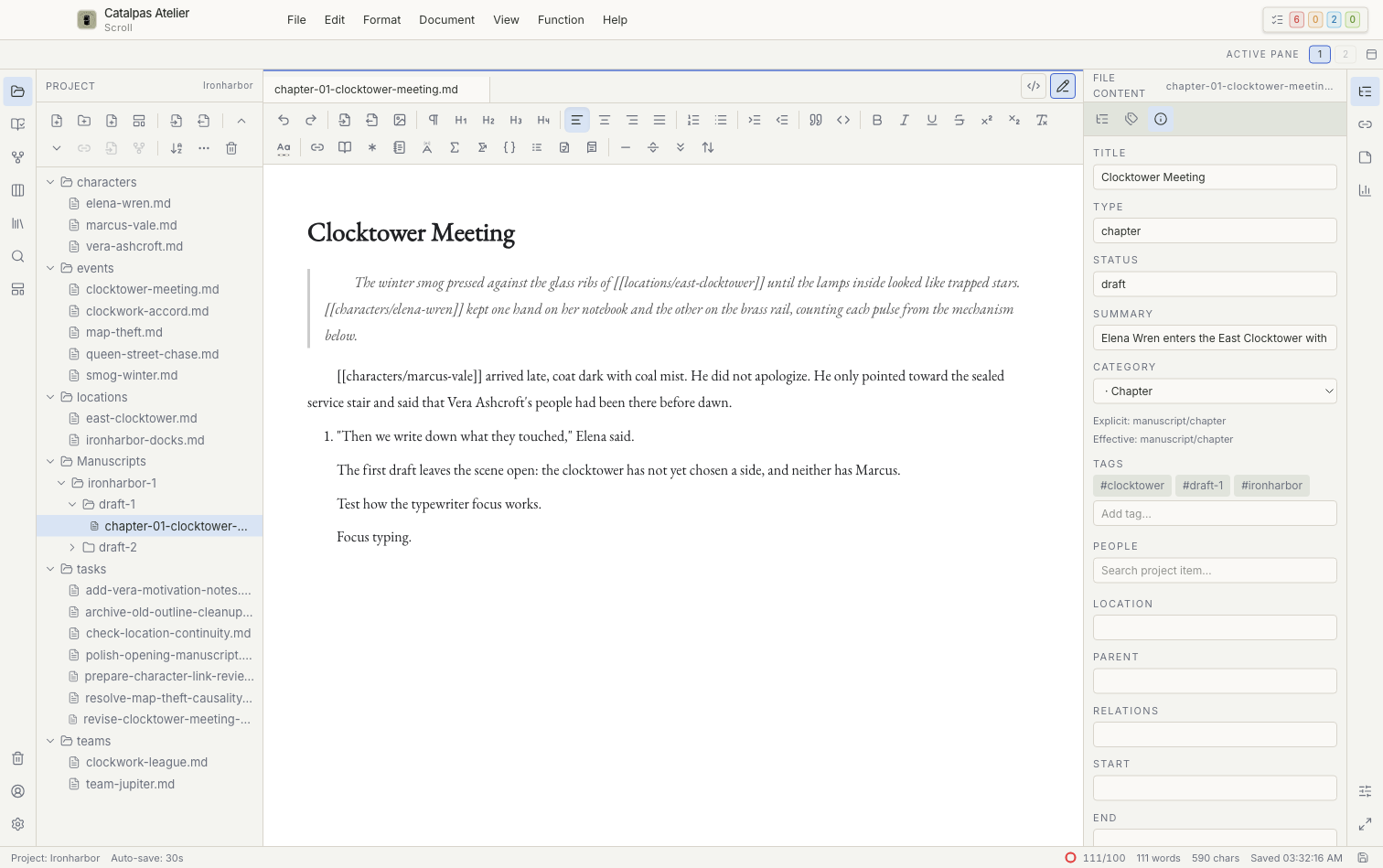
Browse and open files
- Select a file to open it in the editor workbench.
- Expand a folder to see its contents.
- Change the sort order to arrange items by name, type, or other available information. Sorting does not rename files.
- Use Quick Open File to find a file by title or path without expanding every folder.
Create and organize content
The creation menu offers Markdown, text, card, or folder options according to the selected location. When you create a visual card, its template and Category determine its content format and initial fields.
After moving or renaming an item in Scroll, check Wiki links, linked task items, and the source paths used by works and manuscript versions. Repeat these checks after changes made in an external file manager.
Select more than one item
The file tree supports range and multiple selection. Before moving several items or sending them to Trash, confirm the selection count and destination. Do not include both a parent folder and its child in the same bulk operation.
Trash
Supported files and cards removed through Scroll go to the Project's recoverable Trash. Open Trash from the activity bar to restore them. Permanent deletion and emptying Trash cannot be undone, so confirm that you have a backup first.
Changes made by another app
If another editor changes an open file, Scroll prompts you to choose between the version in the editor and the version on disk. Avoid repeatedly saving the same file from two apps at once.