Editor workbench
Text files open in tabs in the editor workbench. Markdown can be edited in Source view or Visual Mode; both modes edit the same prose. Advanced structures edited in Visual Mode are also stored with the Project, so copy the whole Project when backing it up.
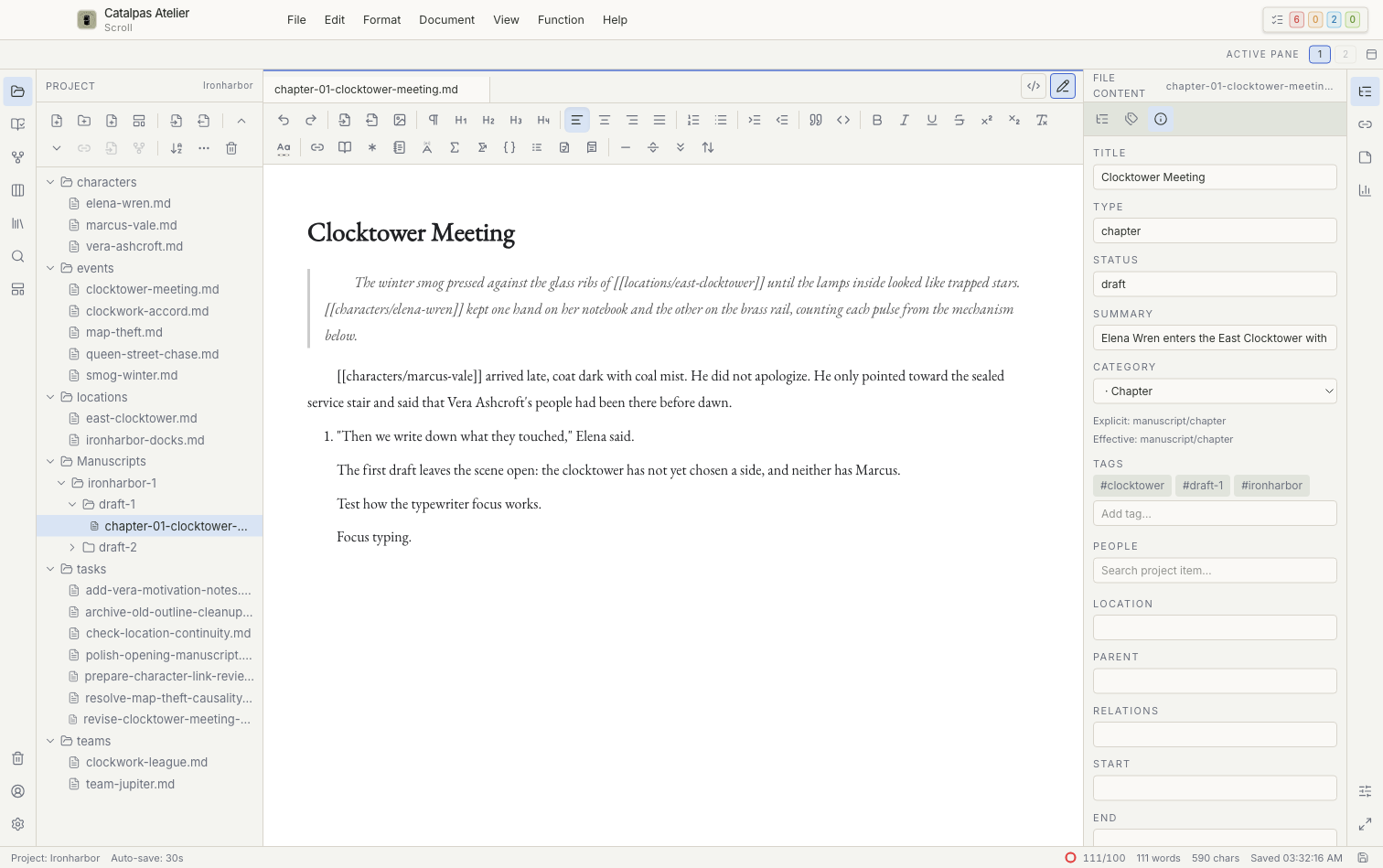
Tabs
- Select a file to open it in a tab.
- An unsaved indicator on a tab means the latest change is not yet stored in the local file.
- When you close a tab or window with unsaved changes, follow the prompt to save, discard the change, or cancel.
- Do not rely on tabs being restored after a restart. Save before leaving the app.
Source view
Use Source view to edit Markdown, YAML frontmatter, TXT, YAML/YML, and .vns text directly. Scroll provides source editing for .vns; compiling, diagnostics, and a running preview are outside Scroll's scope.
Visual Mode
Visual Mode provides formatted editing for paragraphs, headings, lists, quotations, links, and other supported structures. If a structure cannot be saved safely in Visual Mode, return to Source view and inspect the original text instead of deleting unfamiliar markup.
Split panes
Split panes are useful for comparing two files or viewing source alongside formatted content. Closing a pane changes the layout; closing a tab closes the document.
Save
Press Cmd + S on macOS or Ctrl + S on Windows and Linux to save the active document. Wait for the status bar to confirm the save before running an external sync, changing Projects, or closing Scroll.