Split view & view modes
The main workspace can switch between three view modes. Use the toggle in the center of the top bar, or the View menu.
| View | What it shows |
|---|---|
| Editor only | Just the writing surface, for distraction-free drafting. |
| Split | Editor and preview side by side — write on the left, see the result on the right. This is the default. |
| Preview | Preview only, for proofing and a final check before export. |
The split layout
In Split mode the editor sits on the left and the preview on the right, separated by a draggable divider (the cursor changes to a left–right handle when you hover over it). Drag it to change how the two panes share the width — Scribe remembers your preference.
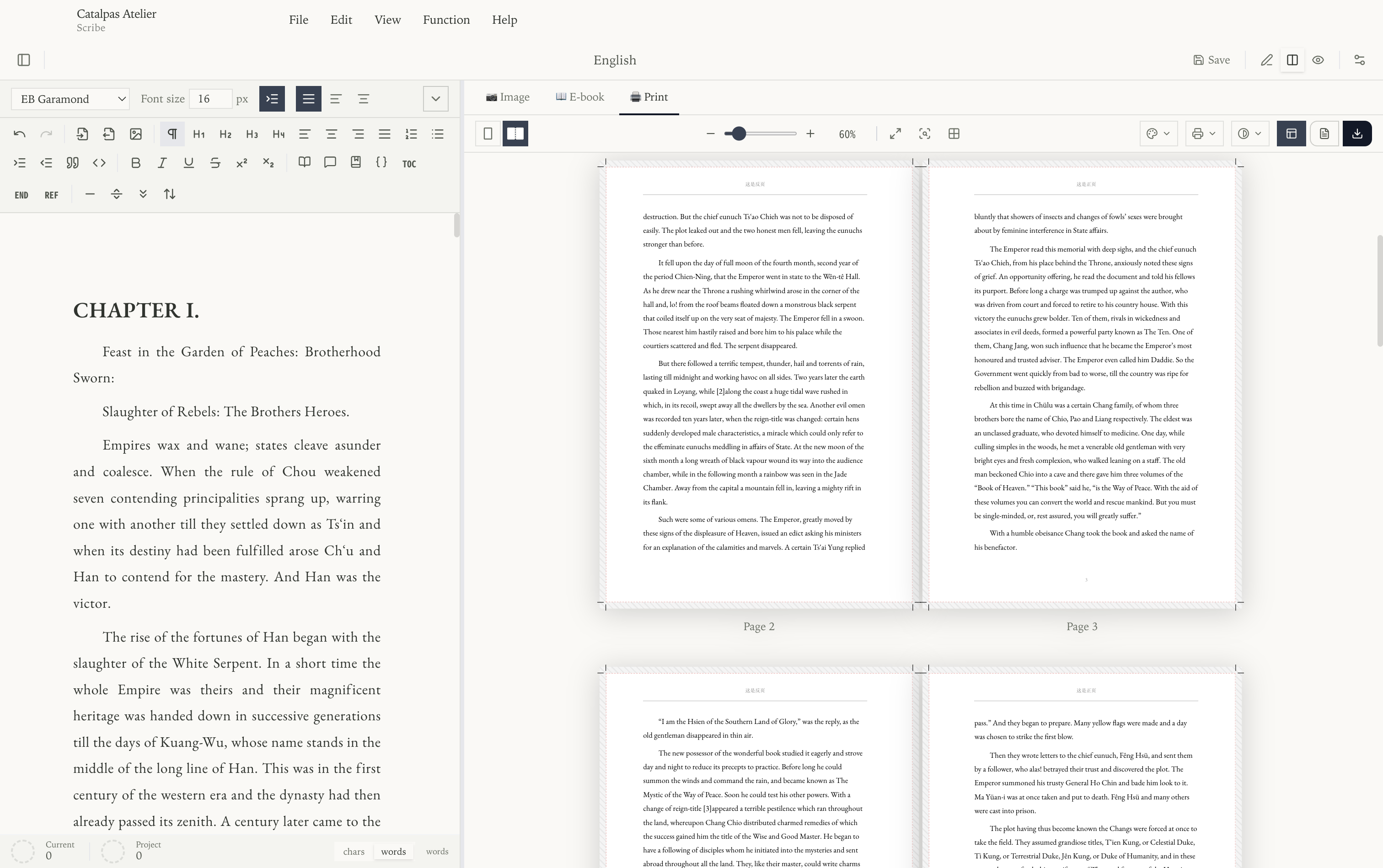
Preview-mode tabs
In both split and preview-only views, three preview-mode tabs sit at the top of the preview pane:
- 📷 Image — social cards and long-image previews.
- 📖 E-book — an EPUB reader-device preview.
- 🖨️ Print — paged or spread print layout.
Switching tabs re-typesets the same manuscript for that context in real time. For details, see Previewer. The Default preview items in the View menu set which preview mode a project opens in.
Sidebar toggles
The buttons at each end of the top bar show or hide the left sidebar (file tree and tools) and the right sidebar (typography and export settings for the current preview mode), giving you more room to write.