Scribe
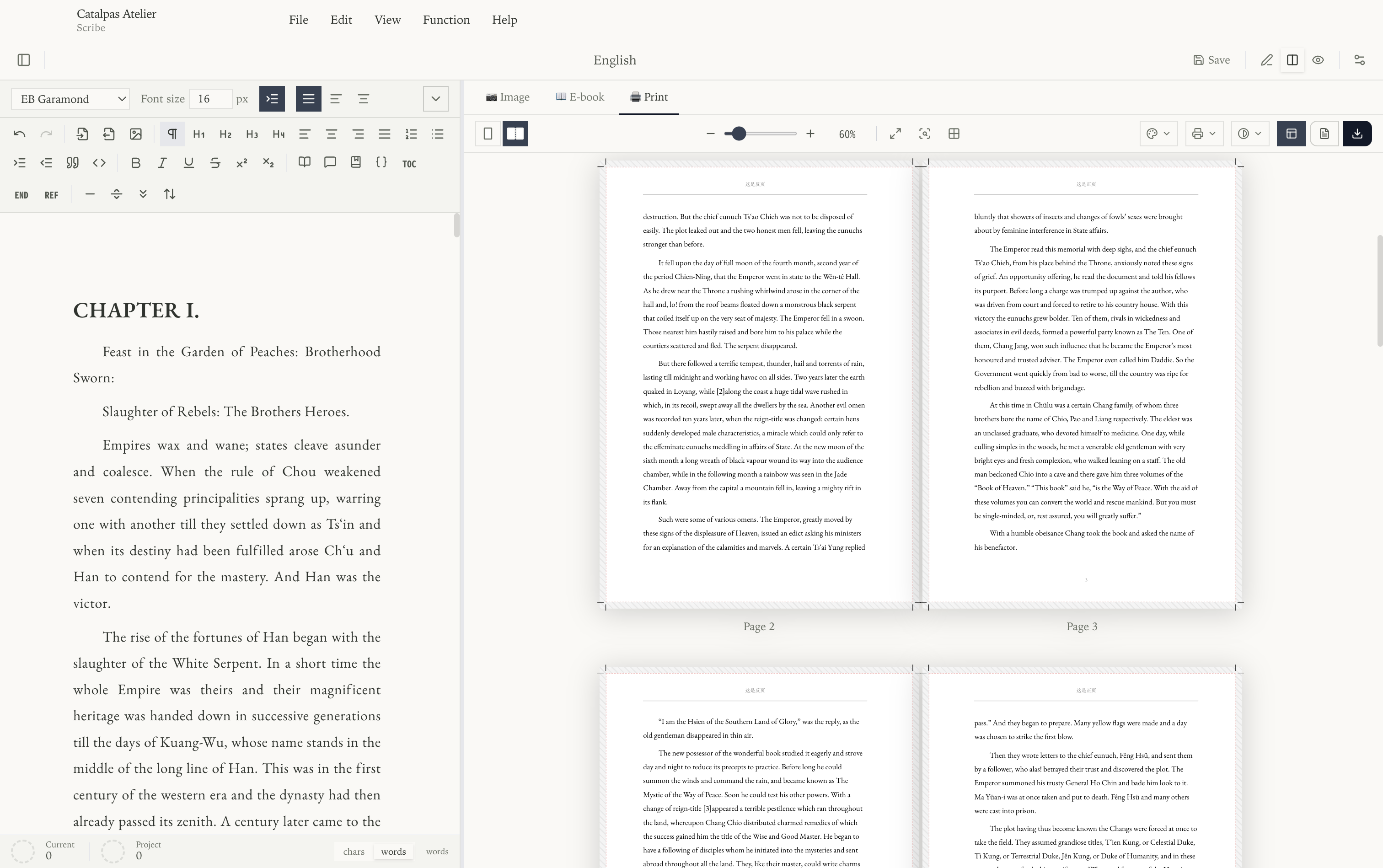
Scribe is a markdown-native long-form writing and layout workspace built for novelists, non-fiction authors, and small presses who want to take a manuscript from the first sentence through to a print-ready file without leaving a single tool.
You write in plain Markdown. Scribe keeps a live layout preview open beside the editor and turns the same source into images, EPUB, Word documents, and PDFs — including CMYK + ICC PDFs on the Pro plan. Before uploading a print file, compare it with your print provider's current requirements.
Where to start
Pick one based on what you want:
| Your goal | Start here |
|---|---|
| Just want to try it | Quickstart (10 minutes) — the shortest path to a working result. |
| Want to learn it properly | Full walkthrough — with screenshots, chapter structure, and step-by-step detail. |
| Looking for one specific feature | Jump straight to Interface, Exporting, or the Advanced features tour below. |
Learning paths
Use these routes to move from the download page to a finished document:
- From free download to first export: Downloads -> Install -> Sign in -> Quickstart. This is the shortest path for someone who has just installed Scribe and wants to see a real result.
- Bring in an existing manuscript: Importing from Markdown (Obsidian) and Word covers
.md, Obsidian vaults, and.docxfiles before you make Scribe the source of truth for layout. - Prepare a print-ready file: start with Exporting, then follow A print-ready CMYK PDF, end to end when you need trim, bleed, ICC profiles, and vendor upload checks.
What's in this guide
The Scribe documentation is organised into these tracks:
- Getting Started — install, sign in, and open your first document.
- Interface — the editor, split view, previewer, and the left and right sidebars.
- Features — managing projects and files, editing content, and exporting.
- Settings — user, system, and project settings.
- Advanced features — CJK vertical layout, ruby annotations, LaTeX, references, custom page masters and templates, appearances, fonts, and watermark control.
- Tutorials — end-to-end walkthroughs, including a step-by-step print-ready CMYK workflow.
To see what each plan includes, read Plans & features matrix. If you cannot find an answer here, start with the FAQ or Contact Support.
Advanced features tour
There are advanced pages grouped into clusters by purpose — you usually only need the one or two that apply to your current manuscript:
- CJK and multilingual typesetting: CJK vertical layout · Ruby annotations · Fonts.
- Academic and citations: LaTeX math · References.
- Page masters and layout: Page masters · Page templates.
- Visuals and publishing: Appearance library · Image background · Watermark.
For end-to-end workflows (such as producing a print-ready CMYK PDF), see the Tutorials; the advanced pages only cover each feature's parameters and behaviour, without repeating the whole workflow.
Supported platforms
Scribe runs on Windows, macOS, and Linux. Installers for each platform are available on the Catalpas Atelier download page.
This guide covers the current public Scribe workflow, from creating or importing a manuscript to previewing and exporting it.