Tasks workspace
Tasks displays the same set of Project task cards through four view types. Switching views does not duplicate tasks: status, dates, hierarchy, and dependencies remain part of the same Project.
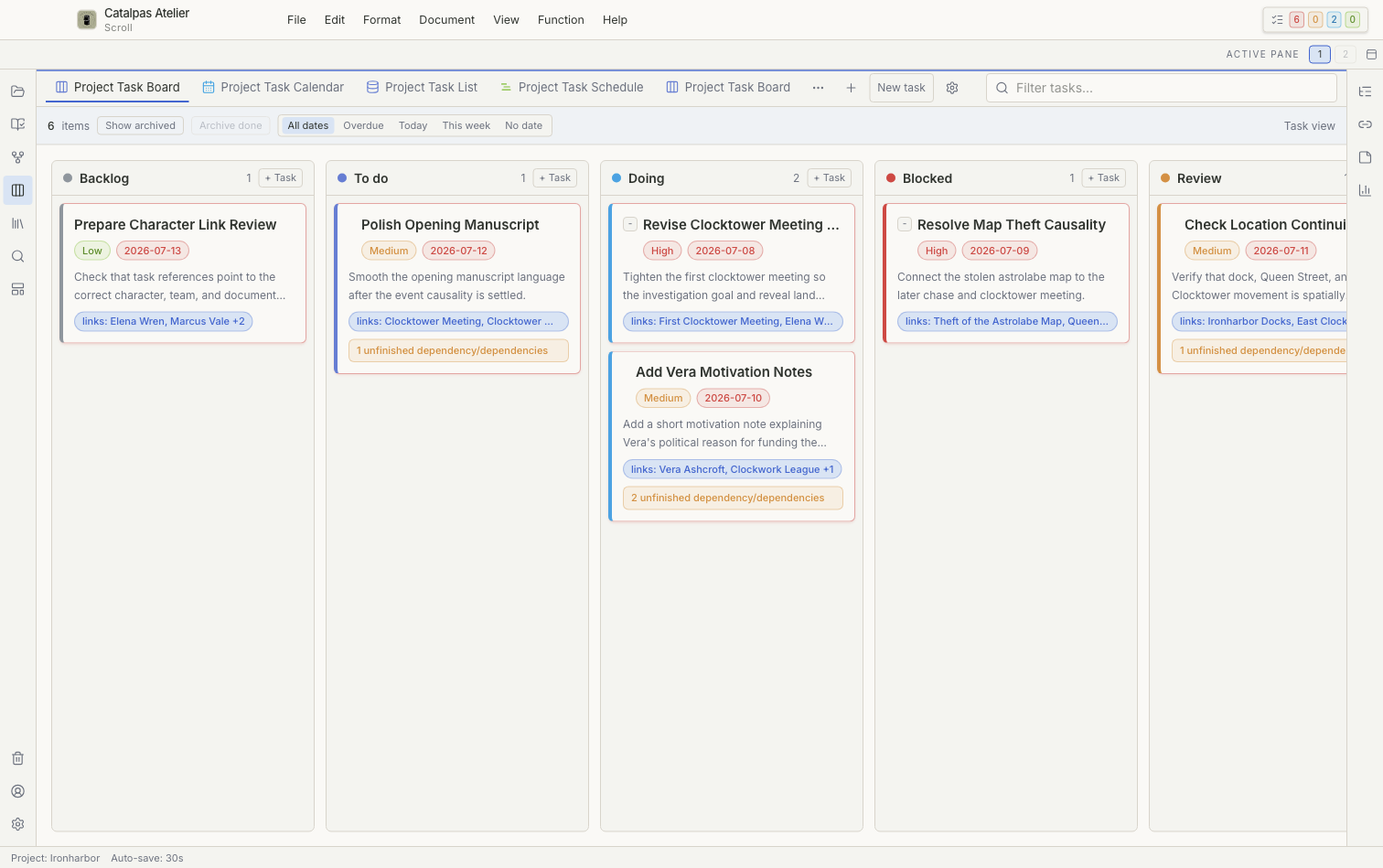
Four task views
- Project Task Board: a Kanban view with columns based on status or another field. It can include swimlanes and work-in-progress limits.
- Project Task Calendar: tasks placed by due date. Tasks without a date do not appear in a dated cell.
- Project Task List: a list for reviewing fields, groups, and parent-child hierarchy.
- Project Task Schedule: a Gantt-style timeline for comparing dates, duration, and hierarchy.
Saved task views
Pinned saved views appear as tabs across the top of Tasks. Use the Tasks menu to open views that are not pinned and to manage saved views. Each view can use its own filters, groups, sorting, and display options without creating a new copy of any task.
Select Create task view to add a Kanban, Calendar, Task list, or Gantt schedule. Select an existing view and use Configure task view to change its name, filters, groups, and display options.
Main task area
The center shows cards, calendar cells, list rows, or timeline bars according to the selected view. Dragging and bulk actions can change several tasks at once. See Track writing progress with tasks for a complete workflow.
Task details
A task can include Status, Priority, a due date, assignee, Parent task, dependencies, recurrence, milestones, Tags, and linked cards or documents. A linked item points to related prose or a card; it does not copy that content.
Archive and delete
Use Archive for the selected task or Archive done for completed tasks in bulk. Archived tasks are hidden but retained and can be reviewed by turning on Show archived. Move to Trash removes the corresponding task from the current Project. Task counts in Scroll do not create operating-system notifications when the app is closed.