Mindmap, Whiteboard, and Flowchart
All three canvas views arrange ideas by position, but each uses a different structure. They are built-in Story views included with Free.
Mindmap
Mindmap builds a parent-child structure outward from a central idea. It suits theme exploration, character goals, and an early outline.
- Double-click empty space to create a node. Select a node and press
Tabfor a child orEnterfor a sibling. - A node can link to an existing Project file or to a file created from the node.
- Create outline turns the hierarchy into text that you can continue organizing. It does not write chapter prose automatically.
Whiteboard
Whiteboard has no required hierarchy. Use it to arrange and group research, clues, revision issues, and notes freely.
- Change a note's text, color, size, and front-to-back order.
- Group several selected notes. Connectors can have a label, style, color, and arrow.
- A canvas connector describes a spatial relationship in that Whiteboard only. It does not create an explicit relationship between cards.
Flowchart
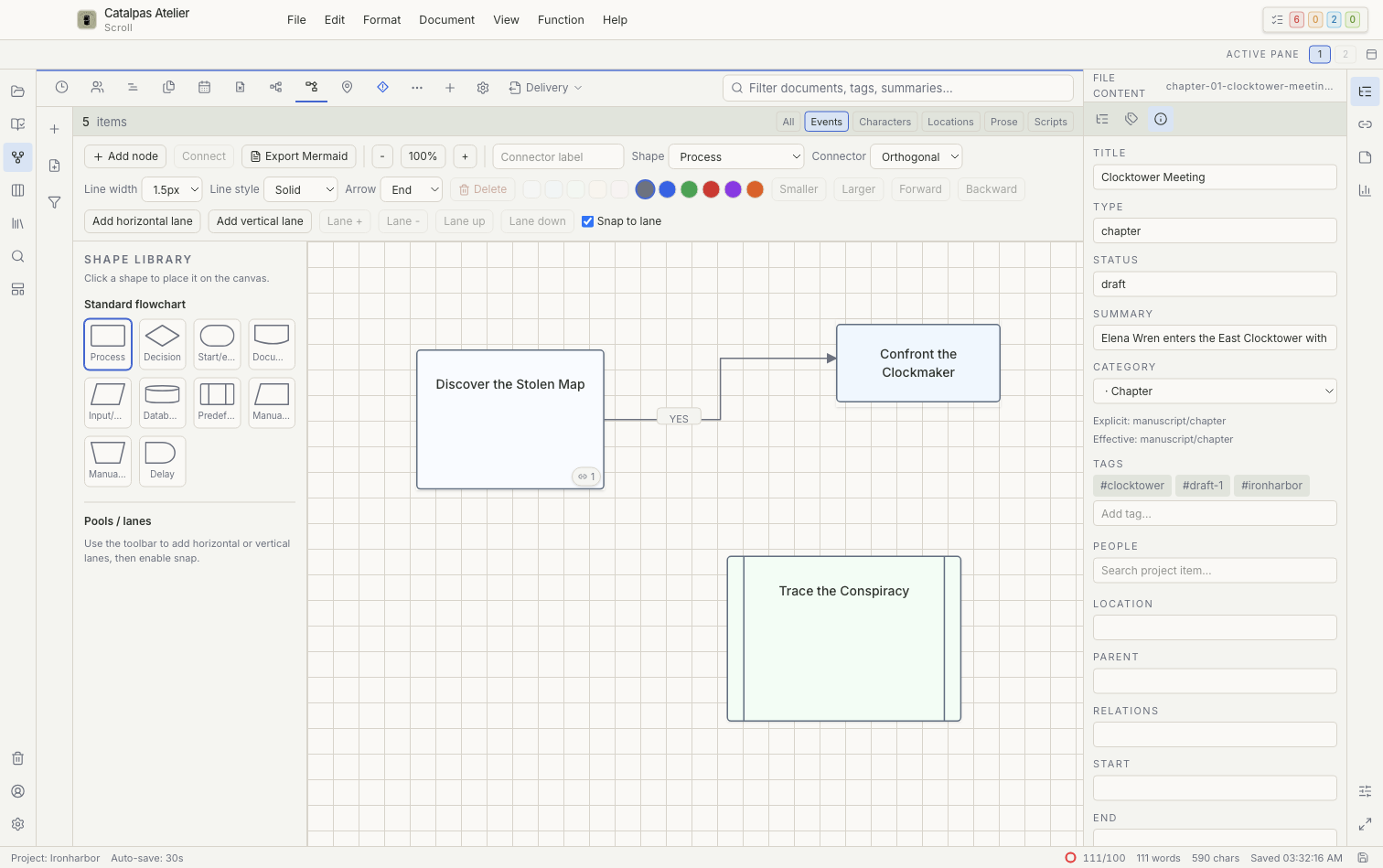
Flowchart uses process, decision, start/end, document, and other standard shapes to describe plot causality or branches.
- Label connectors with conditions such as “Yes” and “No.”
- Horizontal or vertical lanes can separate characters, locations, chapters, or responsibilities.
- Export Mermaid creates readable Mermaid text for further use. It does not create a runnable script or execution preview.
Linked files and deletion
Clearing a file link or deleting a canvas node, group, or connector changes only the active canvas. Linked Project files remain in place. If you remove something by mistake, use the current view's Undo or Redo first, then restore the canvas from a complete Project backup if needed.
For a planning workflow that combines these views with others, see Plan with multiple Story views.