Saved views, filters, groups, and sorting
A saved view records which Project data to display and how to display it. It does not duplicate matching files.
Create a saved view
- Select Create view.
- Enter a name and choose a visualization.
- Optionally choose an icon, color, and initial filter.
- For a Spreadsheet view, choose the template that defines its columns and editable properties.
- Decide whether to keep Pin this view selected.
- Select Create view to save it.
Use a name that describes the purpose, such as Act Two Timeline, rather than View 1.
Manage views
Open Saved views to Pin, Unpin, Duplicate, Delete, or reorder a view. Deleting a saved view removes only its configuration. It does not delete matching prose or cards.
A Project must retain a usable view. If Scroll prevents you from deleting the final view, create its replacement first.
Configure a view
Common settings include:
- name, icon, and visualization;
- a preset, category prefix, exact category, tag, or no filter;
- sort field and direction;
- visible Spreadsheet columns; and
- options specific to the selected visualization.
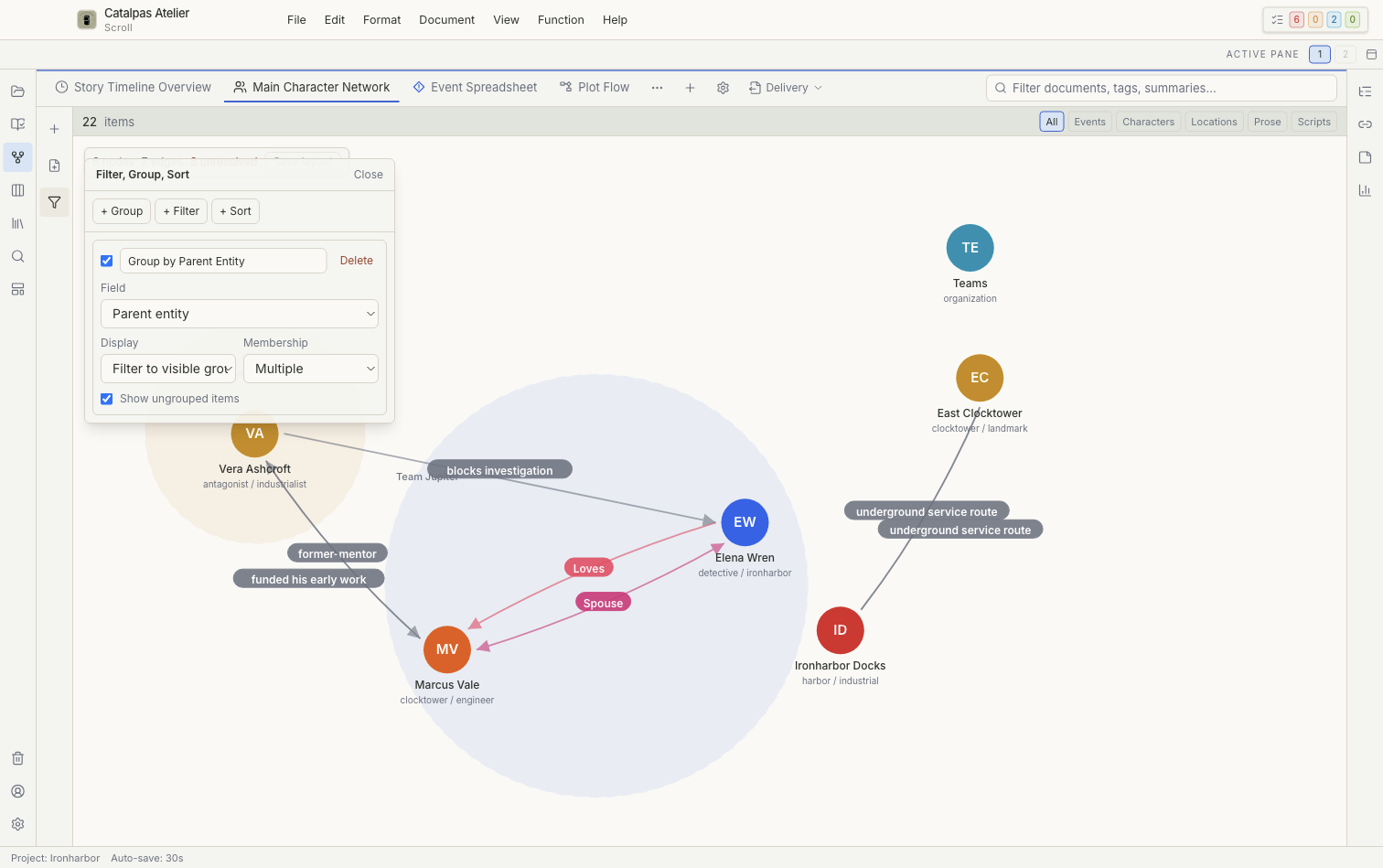
Filter, Group, Sort controls
Use the controls at the left to add, enable, or remove:
- Group by rules based on ordinary fields, a parent entity, or event backlinks;
- filter operators and values such as equals, contains, exists, tag equals, or category prefix; and
- sort fields and directions.
Grouping can show frames only or restrict results to visible groups. Choose single or multiple membership according to the field, and decide whether ungrouped records should remain visible.
What is saved
View definitions, order, pinned state, and saved controls are stored in the Project. The active selection and temporarily expanded items do not change content data.
Options JSON is an advanced setting for the current view. Back up the Project before editing it. Invalid content can prevent the view from loading, so prefer the visual controls for ordinary changes.